
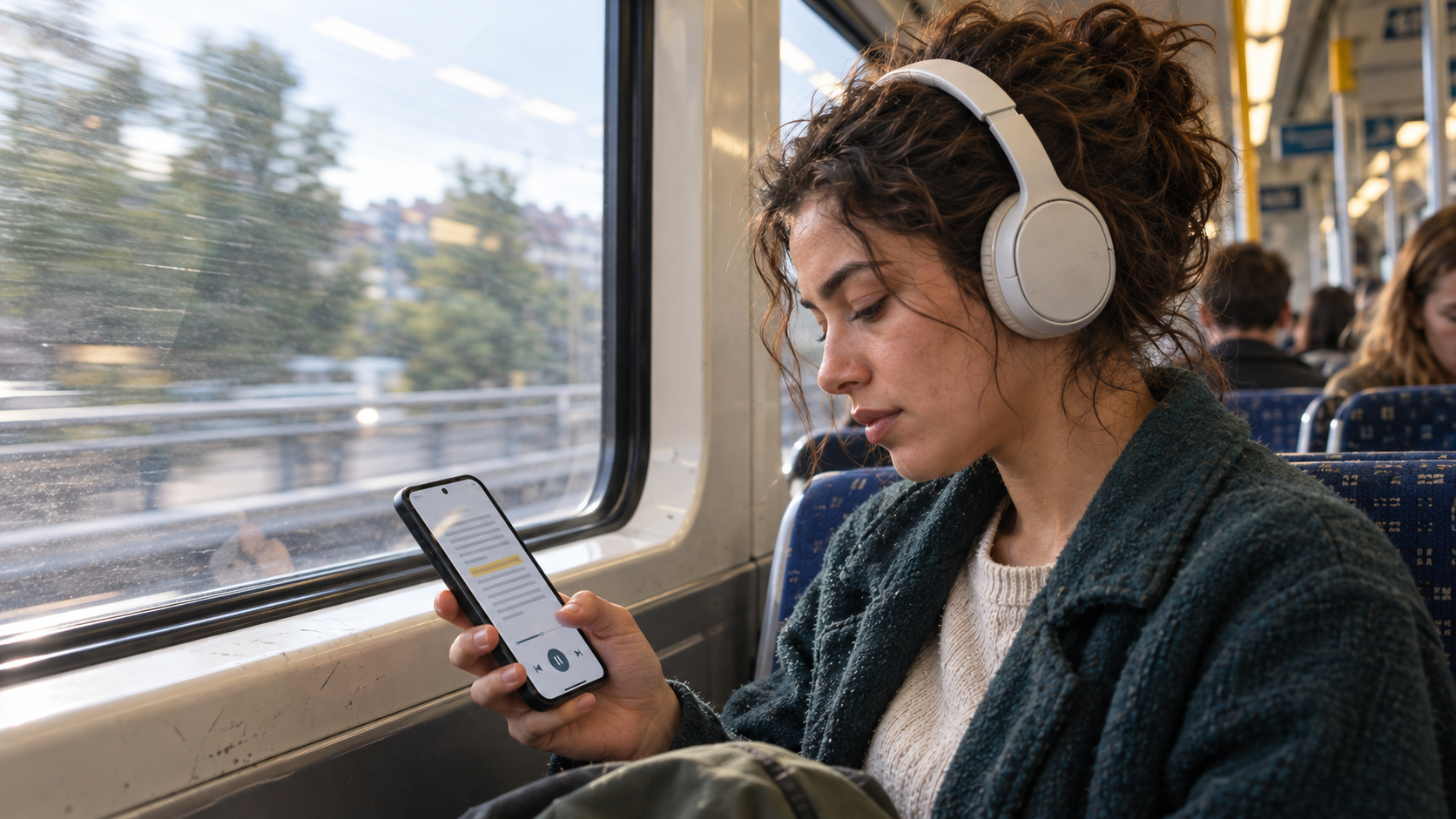
Some documents are easier to hear than to read. A paragraph that looks fine on screen can sound awkward out loud. A long assignment is less tiring when you can listen while following the text. A work document can fit into a commute instead of waiting for another hour at a desk.
Android can read text aloud, but the experience changes depending on where the text lives. A web page, PDF, DOCX file, and personal draft may each need a different route. Here is the simplest way to choose.
Three ways to read text aloud on Android
| What you need | Best starting point |
|---|---|
| A short passage on screen | Android Select to Speak |
| A long article or supported app page | Android Reading Mode |
| A PDF, DOCX, draft, or saved article | A document app with built-in read-aloud |
Use Select to Speak for text already on screen
Android’s Select to Speak can read selected text in supported apps and web pages. After enabling its accessibility shortcut, you can tap or drag across text and press play. It is useful when you need one section spoken rather than an entire file.
The catch is in the word supported. Text inside some document viewers may not be selectable, and reading a long file section by section quickly becomes fiddly.
Use Reading Mode for long articles
Android Reading Mode can simplify supported long-form content and read it aloud. It also lets you change the voice and speed. Google notes that Reading Mode currently does not support PDFs, email, chat messages, or social media feeds, so it is better for articles than mixed document work.
For a quick experiment, you can also test text-to-speech in your browser without signing up.
Read a PDF or DOCX aloud in WordPad Plus
If the document is a file rather than selectable screen text, a document-first app is the cleaner route. WordPad Plus can import PDF and DOCX files, read document text aloud, and highlight the current sentence so your eyes do not lose their place.
- Open or import the document in WordPad Plus.
- Start the read-aloud player.
- Choose a comfortable voice and playback speed.
- Follow the highlighted sentence or let the document continue while you do something else.
- Pause and edit when you hear a mistake or awkward phrase.
The app is designed around offline-first writing, so document editing and playback do not require a cloud account. Your available offline voices depend on the text-to-speech engine and voice data installed on the phone.
Use read-aloud as a proofreading pass
Listening is not only an accessibility feature. It is one of the fastest ways to find repeated words, missing transitions, sentences that run too long, and punctuation that does not match the rhythm of the idea.
A simple editing sequence is: write, leave the draft alone for a few minutes, listen once without editing, then listen again and pause only where something sounds wrong. This works especially well when you write and revise on your phone.
“Your eyes remember what you meant to write. A voice only reads what is actually there.”
A simpler way to listen to documents
If you want one place to import, read, edit, and listen to documents offline, WordPad Plus combines document playback with the Android writing tools you already need.
FAQ
Can Android read a PDF aloud?
Yes, but Android Reading Mode does not currently support PDF files. Use a PDF-capable document reader with text-to-speech, such as WordPad Plus, or another accessible PDF reader.
Can Android read a Word document aloud?
Yes. Import the DOCX file into an app that supports both the format and read-aloud playback. WordPad Plus can import DOCX documents and read their text aloud.
Does text-to-speech work offline on Android?
It can. In Android’s text-to-speech settings, install voice data for the language you need. Some higher-quality network voices still require an internet connection.
How do I change the reading voice or speed?
Open Android Settings, then Accessibility and Text-to-speech output. Available engines, voices, languages, pitch, and speed vary by device. WordPad Plus also provides playback controls inside its reader.
The bottom line
Use Select to Speak for a short passage, Reading Mode for a supported article, and a document reader for PDFs, DOCX files, drafts, and saved pages. The right choice removes friction between opening the file and actually hearing it.