Text formatting is the quiet difference between a document that looks unfinished and one that feels ready to share.
You can write almost anything on an Android phone now: a job letter, class assignment, meeting note, personal statement, invoice note, or short report. The hard part is making those words look organized enough that someone else can read them without effort.
That is where a good text formatting app for Android matters. Bold text, headings, bullet lists, spacing, alignment, and PDF export may sound small, but they change how your document is received.
Why text formatting matters on Android
Plain text is useful when you are capturing ideas quickly. It is less useful when the document has to be submitted, printed, emailed, signed, or read by someone busy.
Formatting gives the reader signals. A heading says, “This section starts here.” A bullet list says, “These points belong together.” Bold text says, “This detail matters.” Proper spacing says, “You can breathe while reading this.”
The formatting tools most documents actually need
You do not need a complicated desktop-style toolbar for most everyday writing. You need the few tools that make documents clearer.
- Bold for names, dates, section labels, and important phrases.
- Italic for emphasis, titles, notes, or softer visual contrast.
- Underline when a label or line needs extra attention.
- Headings to separate major sections in reports, notes, and drafts.
- Bullets and numbered lists for steps, requirements, summaries, and tasks.
- Alignment for titles, letter headers, signatures, and formal layouts.
- PDF export so the finished document keeps its layout when shared.
These tools turn a phone draft into a real document, especially when you are using an offline word processor on Android instead of a cloud-first office app.
Common documents that need formatting
Some documents can survive as simple notes. Others need structure right away.
| Document type | Useful formatting | Why it helps |
|---|---|---|
| Letters | Alignment, spacing, bold labels | Makes the letter look formal and easy to scan |
| Assignments | Headings, lists, paragraph spacing | Helps separate answers, sections, and examples |
| Meeting notes | Bullets, numbered lists, bold action items | Turns notes into usable follow-up tasks |
| Reports | Headings, lists, emphasis, export | Makes longer information easier to navigate |
If you often write formal letters, a proper letter writing app on Android should include formatting tools, not just a blank page.
A simple formatting checklist
Before you share a document from your phone, run through this quick check:
- Can someone understand the document in 10 seconds? Add a clear title or first line.
- Are the sections obvious? Use headings or bold labels where needed.
- Are long paragraphs tiring? Break them into shorter blocks.
- Are steps or items buried in sentences? Turn them into a list.
- Will the layout stay stable? Export as PDF when appearance matters.
Where WordPad Plus fits
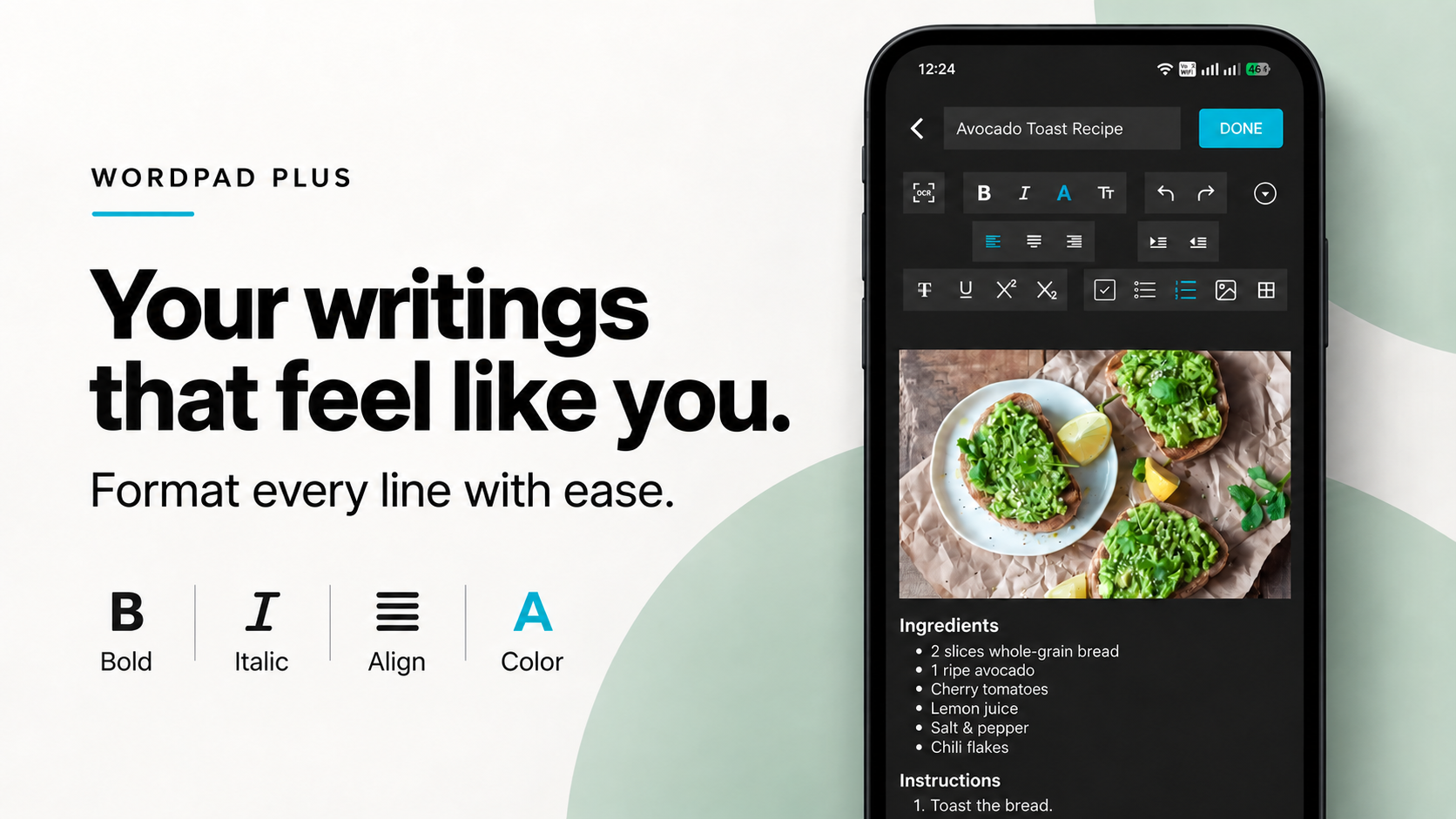
WordPad Plus is built for Android users who want to write and format documents without being forced into an account-first workflow. You can draft offline, use rich text formatting, organize files locally, import DOCX files, and export finished work as PDF.
That makes it useful for everyday writing that needs polish: letters, assignments, notes, reports, applications, checklists, and private drafts.
Format documents on Android without the fuss
If you want an offline Android app for writing and formatting clean documents, WordPad Plus gives you rich text tools, local saving, DOCX import, and PDF export without forcing a sign-in-first workflow.
FAQ
What is text formatting on Android?
Text formatting means changing how text looks and is structured, such as using bold, italic, underline, headings, alignment, bullet lists, numbered lists, and spacing inside an Android document editor.
Can I format documents on my phone?
Yes. A rich text editor or Android word processor lets you format documents directly on your phone, then save or export them when they are ready.
Is PDF export important after formatting?
PDF export is useful when you want the document layout to stay stable after sharing, emailing, printing, or submitting it. You can read more about how to create a PDF on Android.
Do I need Microsoft Word for Android text formatting?
Not always. If you mainly need everyday writing, rich text formatting, local files, and PDF export, an offline Android word processor can be simpler than a full office suite.
The bottom line
Good formatting makes writing feel finished. It helps your reader see what matters, follow the structure, and trust the document in front of them.
Use formatting deliberately: headings for structure, lists for clarity, bold text for emphasis, and PDF export when the document is ready to send.