Writing on Android is easy. Making the document look finished is where many people get stuck.
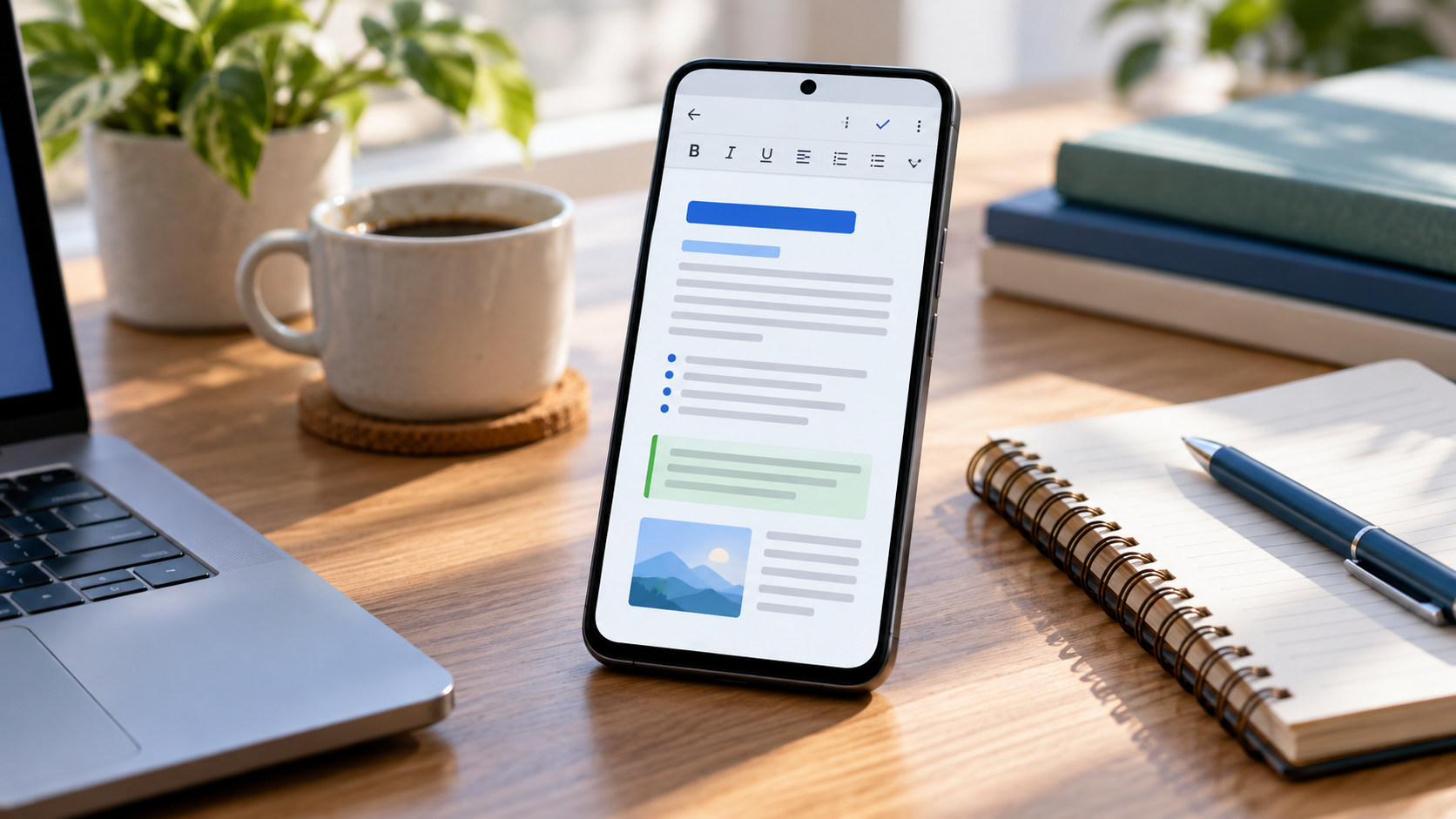
A note can become a letter. A messy draft can become a resume section. A set of thoughts can become a clean PDF. The difference is not usually fancy design. It is simple text formatting: headings, spacing, bold text, lists, alignment, and enough visual order that the reader knows where to look first.
That matters more on a phone, because small screens make messy documents feel even messier. A wall of text that looks acceptable on a laptop can feel tiring on Android after three seconds.
What text formatting actually does
Text formatting is the way you shape words so a document becomes easier to read. It includes basic choices like bold, italic, underline, font size, paragraph spacing, alignment, bullet lists, numbered lists, and headings.
Official help pages for Google Docs on Android and Microsoft Word mobile both show the same pattern: mobile document editors are not only for typing. They are also for shaping the document before you send it.
The mobile formatting checklist
Before you export or share a document from Android, check these five things.
1. Use headings to separate ideas
Headings tell the reader what each section is about. They also make your own editing easier because you can see the structure of the document instead of scrolling through one long block of text.
Use headings for sections like “Objective,” “Experience,” “Project Summary,” “Meeting Notes,” “Budget,” or “Next Steps.” Keep them short. A heading should label the section, not explain the entire section.
2. Use bold text for decisions, not everything
Bold text works best when it highlights a key detail: a deadline, a name, a required action, a total amount, or a section label. If half the document is bold, nothing feels important.
A useful rule: bold the phrase someone might look for later.
3. Add spacing so the document can breathe
Spacing is one of the easiest ways to make a phone-written document feel professional. Short paragraphs are easier to scan. A little space between sections helps the reader reset. Lists need room around them so they do not look pasted in.
Good spacing is especially important before exporting to PDF, because PDF files preserve the visual layout more strictly than a normal editable draft.
4. Turn repeated points into lists
If you have three or more related points, a list is usually clearer than a paragraph. Use bullet lists when order does not matter. Use numbered lists when the sequence matters.
- Use bullets for features, requirements, supplies, or ideas.
- Use numbers for steps, priorities, rankings, or instructions.
- Keep list items parallel so they feel easy to compare.
5. Check alignment before sharing
Most everyday documents should use left alignment because it is easiest to read. Center alignment is useful for titles, invitations, certificates, or short notices, but it gets tiring in long paragraphs.
Right alignment is usually best for dates, amounts, signatures, or document details that belong on the edge of the page.
“A clean document does not ask the reader to work hard before they understand it.”
Common formatting mistakes on Android
The biggest mistake is trying to make a mobile document look impressive instead of readable. Too many font sizes, colors, highlights, and alignments can make the file feel less trustworthy.
| Mistake | Better choice |
|---|---|
| Using bold for entire paragraphs | Bold only the key phrase or label |
| Mixing many colors | Use color sparingly for emphasis |
| Writing long blocks of text | Break sections into short paragraphs |
| Centering everything | Use left alignment for readable body text |
Where WordPad Plus fits
If you mainly want to write and format documents on Android without a heavy cloud workspace, an offline Android document editor like WordPad Plus can be a simpler fit.
It focuses on practical rich text editing, local folders, DOCX import, PDF export, OCR scanning, dark mode, read-aloud, PIN lock, and offline writing. That combination is useful when you are working on private drafts, letters, notes, assignments, resumes, or everyday documents from your phone.
A simple format for everyday documents
For most Android documents, this structure is enough:
- Start with a clear title.
- Use one short opening paragraph.
- Add headings for each major section.
- Use bullet lists for details.
- Bold only the labels or important actions.
- End with the next step, request, or conclusion.
This works for leave letters, meeting notes, assignment outlines, work summaries, personal plans, client notes, and small business documents. It is not complicated. That is the point.
Format documents privately on Android
If you want rich text tools without turning every draft into a cloud project, WordPad Plus gives you an offline Android word processor for writing, formatting, saving, and exporting documents from your phone.
FAQ
What is text formatting on Android?
Text formatting on Android means changing the look and structure of a document from your phone or tablet. It includes headings, bold text, font size, spacing, alignment, bullet lists, numbered lists, and other rich text controls.
Why does formatting matter before exporting to PDF?
PDF export preserves how the document looks. If the editable draft has weak spacing, unclear headings, or messy lists, the PDF will usually carry those problems forward.
Can I format documents offline on Android?
Yes, if your document editor supports offline writing and local editing. WordPad Plus is built around offline Android document editing, so you can write and format without making every draft depend on a cloud workspace.
What formatting should I use for a professional document?
Use a clear title, short paragraphs, simple headings, consistent spacing, bullet lists for grouped details, and bold text only for important labels or actions. Avoid too many colors, font sizes, and alignment changes.
The bottom line
Good formatting does not make a weak document strong, but it does help a useful document look clear, calm, and ready to share.
On Android, that clarity matters. The screen is smaller, the keyboard is tighter, and the reader is often moving quickly. A few simple formatting choices can make the difference between a rough note and a finished document.